NM Collector Software JE (Java
Edition)
Create a new Collection Type
based on an existing Collection Type

2. Click the Export Button. and select Firearms from the drop down list and click OK.

3. Select the EXISTING directory to export to (best to use the default directory provided) and Click the Save button.

4. A successful export message will appear giving you the location and the name of the exported file. Click OK.

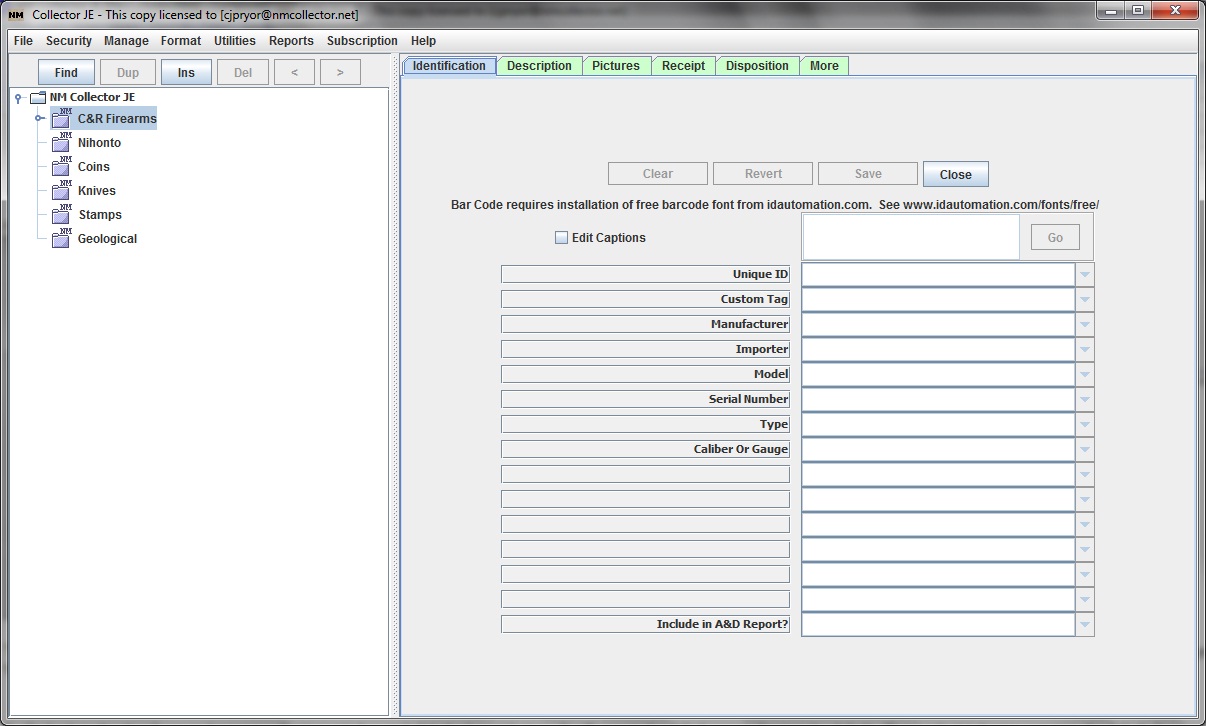
5. Rename the current Firearms Collection to something new like "C&R Firearms."

6. Click the Resynch button to update the database and the main display. You will get a message that the resynch is starting and then another message when it is complete. Click OK for both messages. Wait for the resynch to complete. You will see the renamed collection type in your main window.
7. Go back to the already opened manage collections window and click the Import button. It will open in the default export directory by default. That is why it is best to export to the default directory so you don't have to remember where you put it.

8. An instruction message appears - telling you to wait for the import to complete - click OK and wait for completion message. You will see your newly imported collection type at the bottom of the Manage Collections list.

9. A resynchronize data window will appear - click OK and wait for the completion message. Click OK. Your new collection type will appear at the bottom of the main display. Now you have two Firearms Collection Types with the same fields.
