A special note regarding privacy
This program does not plant anything on your system. Nor does it connect to the internet unless you click a request for help or information link from within the program. In that case it only goes to the requested page and nowhere else. The only exception is during a Windows install to ensure the correct version of Java is loaded.
To verify this claim I recommend you download, purchase (if necessary) and install one of the many privacy programs available on the web. These will notify you when any program is trying to access the Internet. Some are better than others but I have successfully used the following:
I currently use Norton Security Suite because it is provided to me for free by my Internet Service Provider (Comcast). It is probably not be the best firewall out there but it does meet my needs and it is free.Here are step by step instructions with screen captures for using Norton Security Suite to monitor network access of any application on your computer. I will use NM Collector Software for this example but you can apply these steps for any program on your computer.
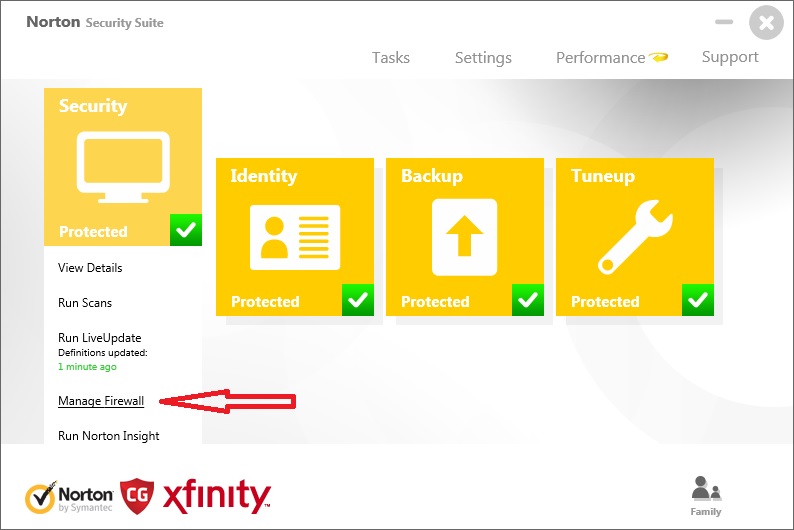
- Start Norton Security Suite and select "Manage Firewall"
under Secutiry.
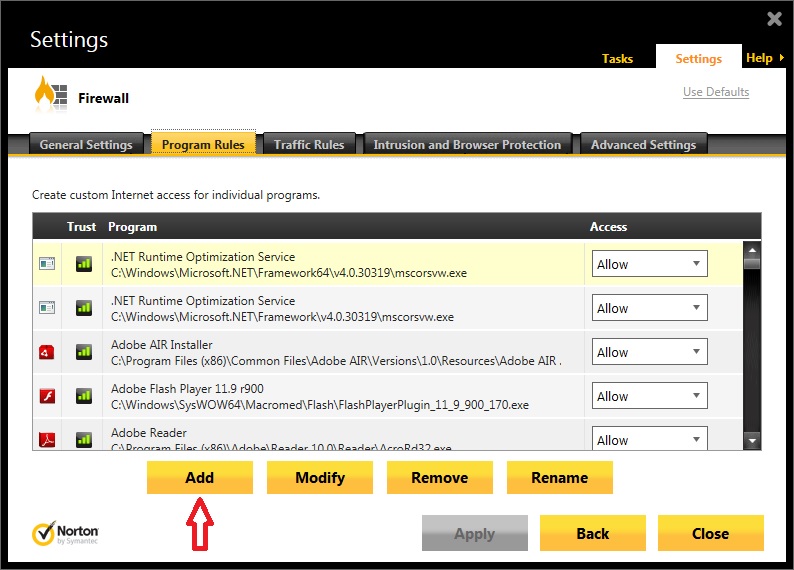
- Select the "Program Rules" tab and clcik the "Add" button.
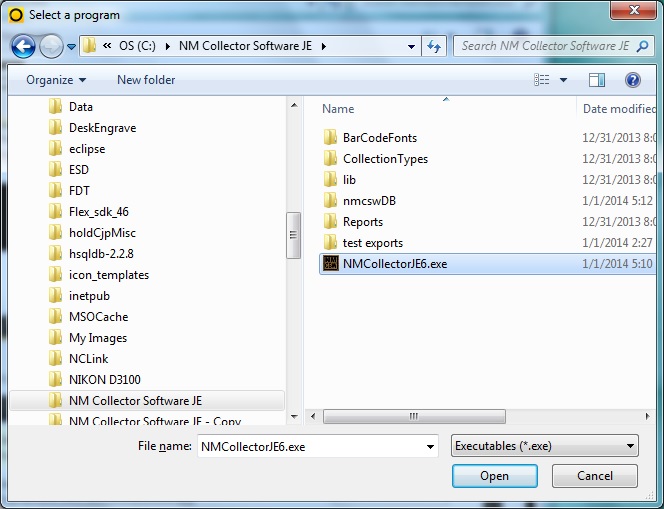
- Browse to and select the program that you want to monitor.
- In the security alert popup, ensure "Manually configure" is
selected.

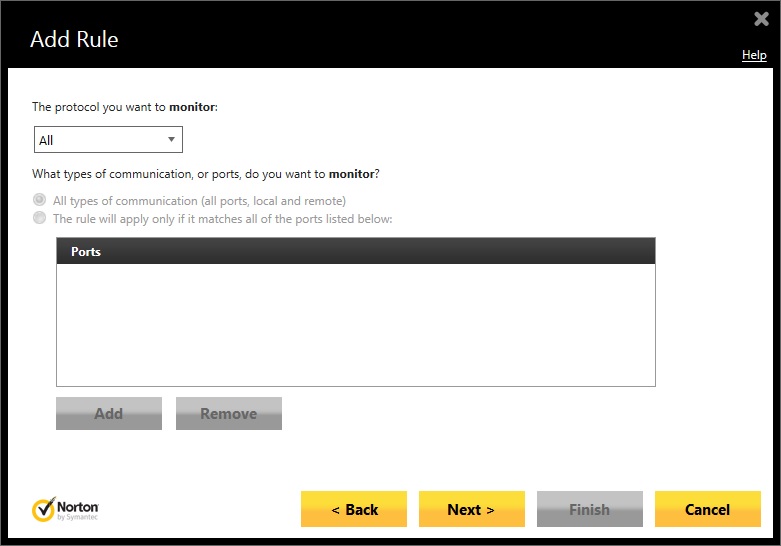
- Select Monitor.

- Select "Connections to and from other computers."

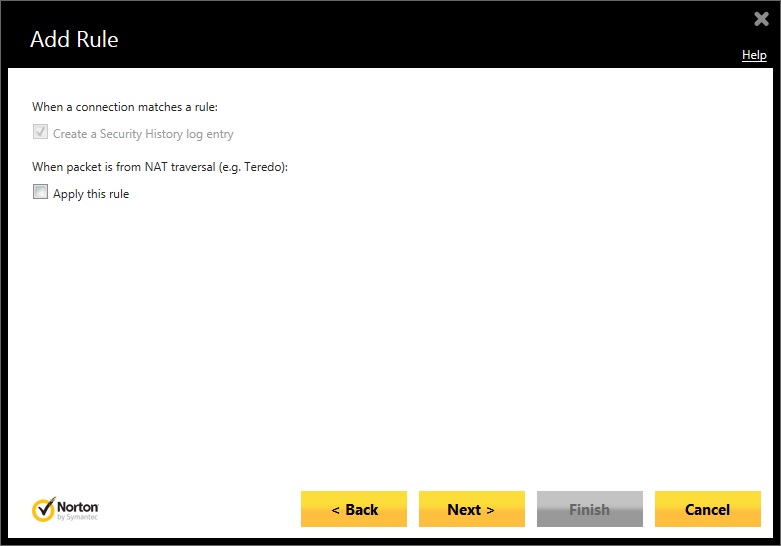
- Make the following selections on the subsequent pages

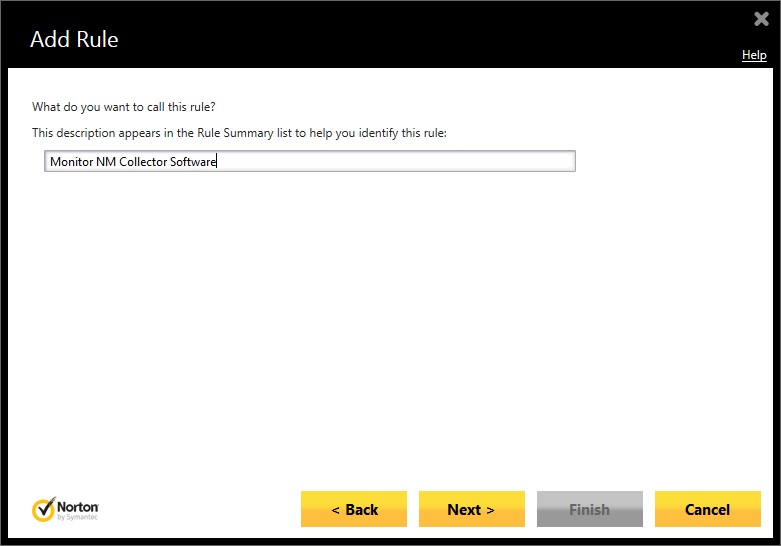
- Give your new rule a meaningful name.
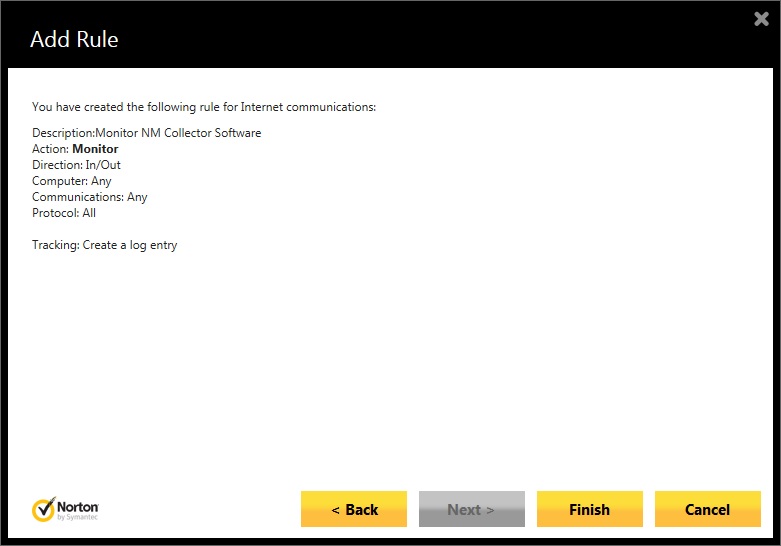
- View the summary page and cick the "Finnish" button.
- View the new rule and cick the "OK" button.

- View the current list of rules including your new rule. Be
sure to click the Apply button or your new rule will not be saved
and all that work you just did will be lost.

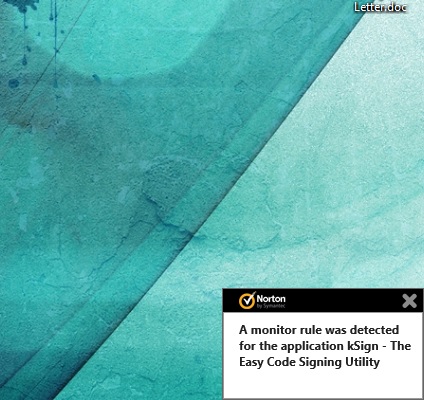
- Start the program and watch for any monitor alerts to flash.
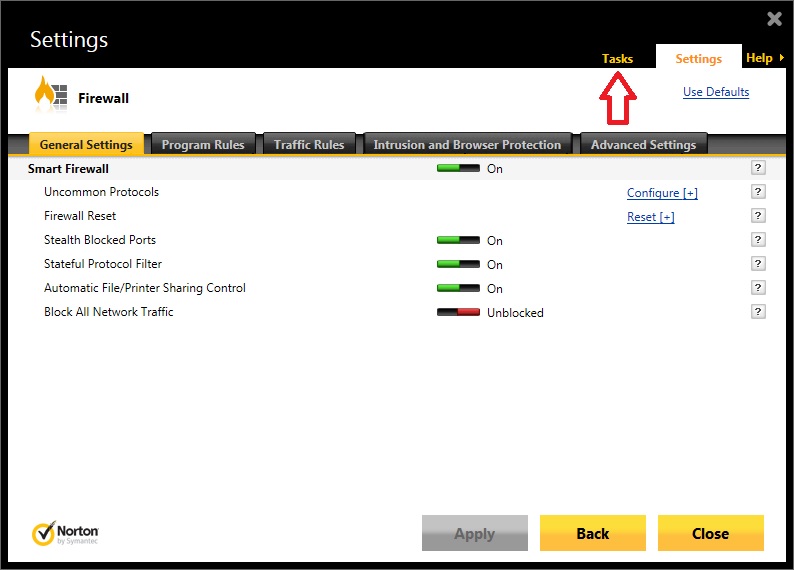
- To view logs of program activity, start by click the "Tasks"
link from the main firewall page and ...
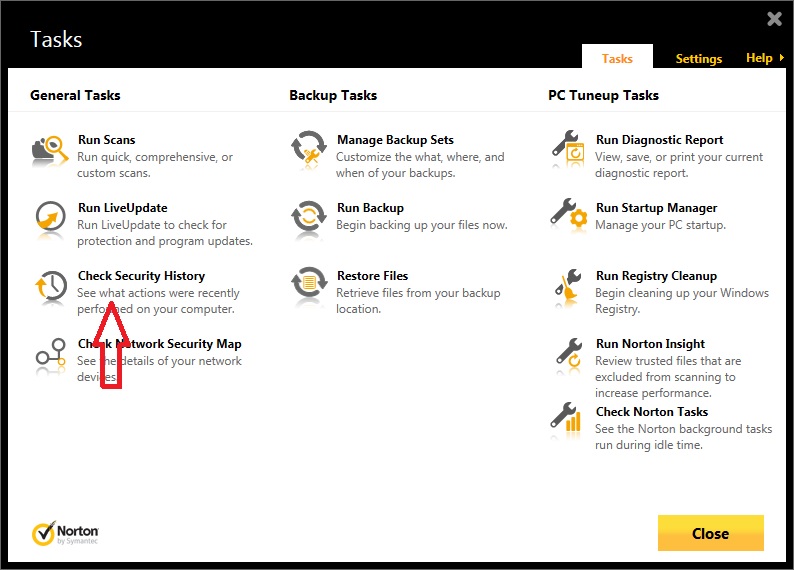
- Select "Check Security History."
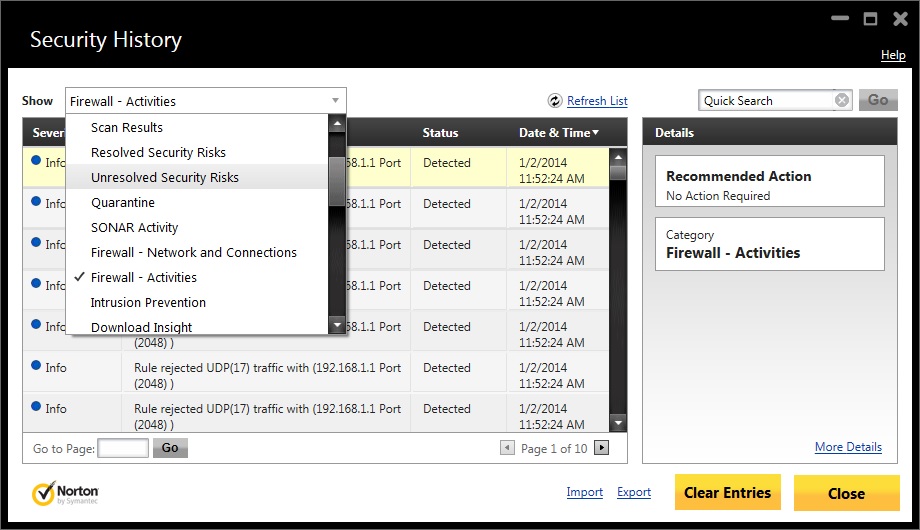
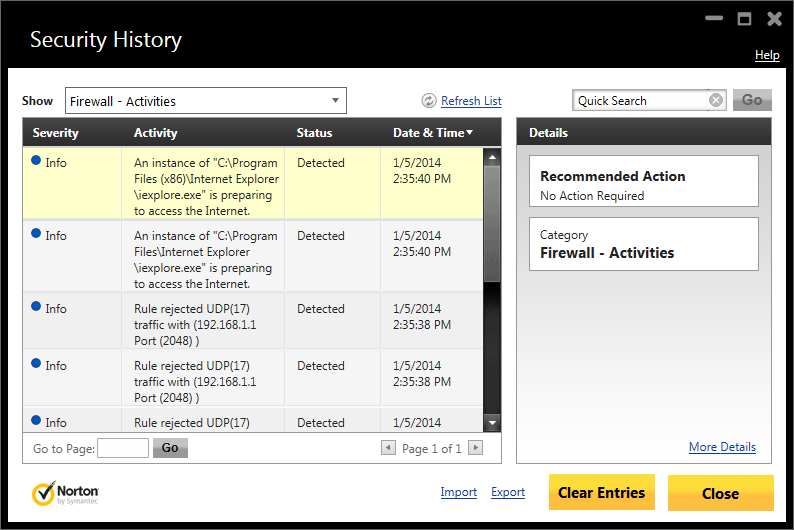
- Optional: Select "Firewall Activities" from the drop down.
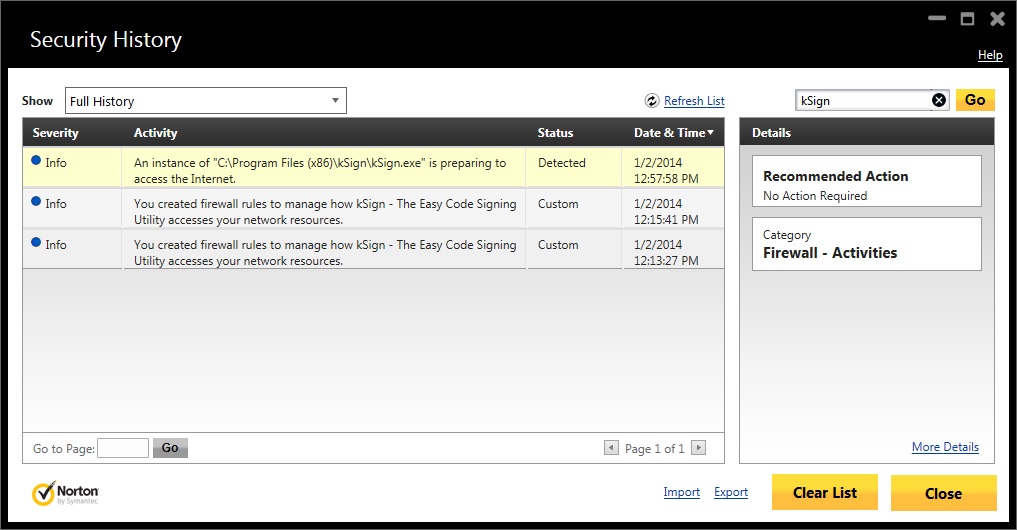
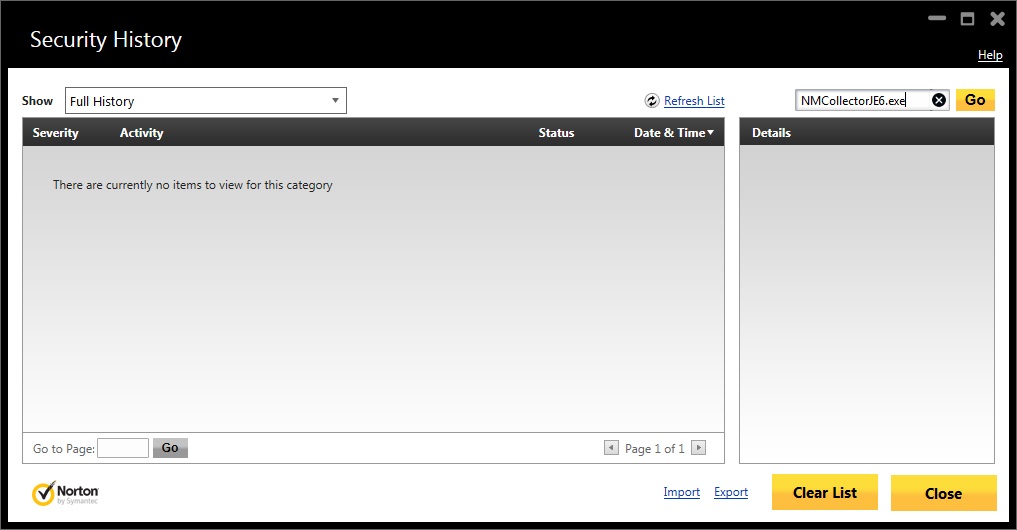
- Use the search box in the upper right hand corner to look
for program activity. When you find activity, you can select an item
and click the "More Details" link in the bottom right to get more
information.
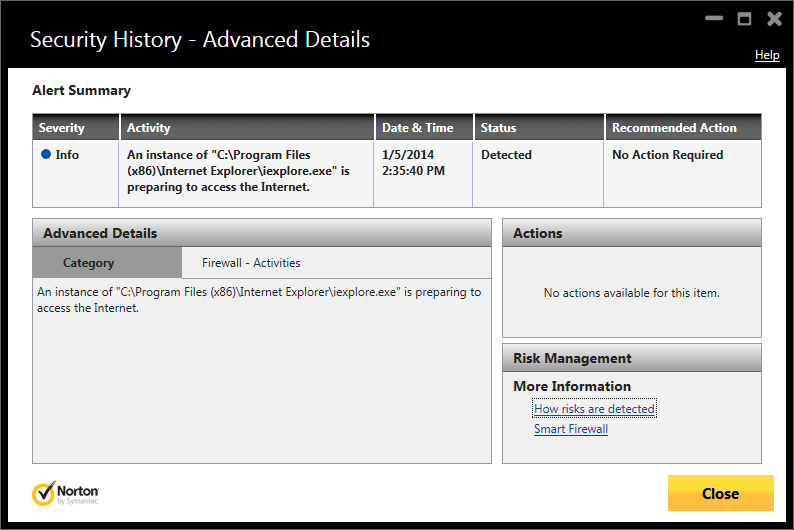
Clicking the "More Details" link provides addtional information:
Last Revised: January 2, 2014
Copyright © 2008, 2009, 2010, 2011, 2012, 2013, 2014 by Clayton J. Pryor. All rights reserved.